What Are Chat and Board in the Content Toolkit?
Chat and Board form a unified interface inside Semrush’s Content Toolkit. They combine a familiar AI-powered chat with a visual board that displays all content pieces in a single view.
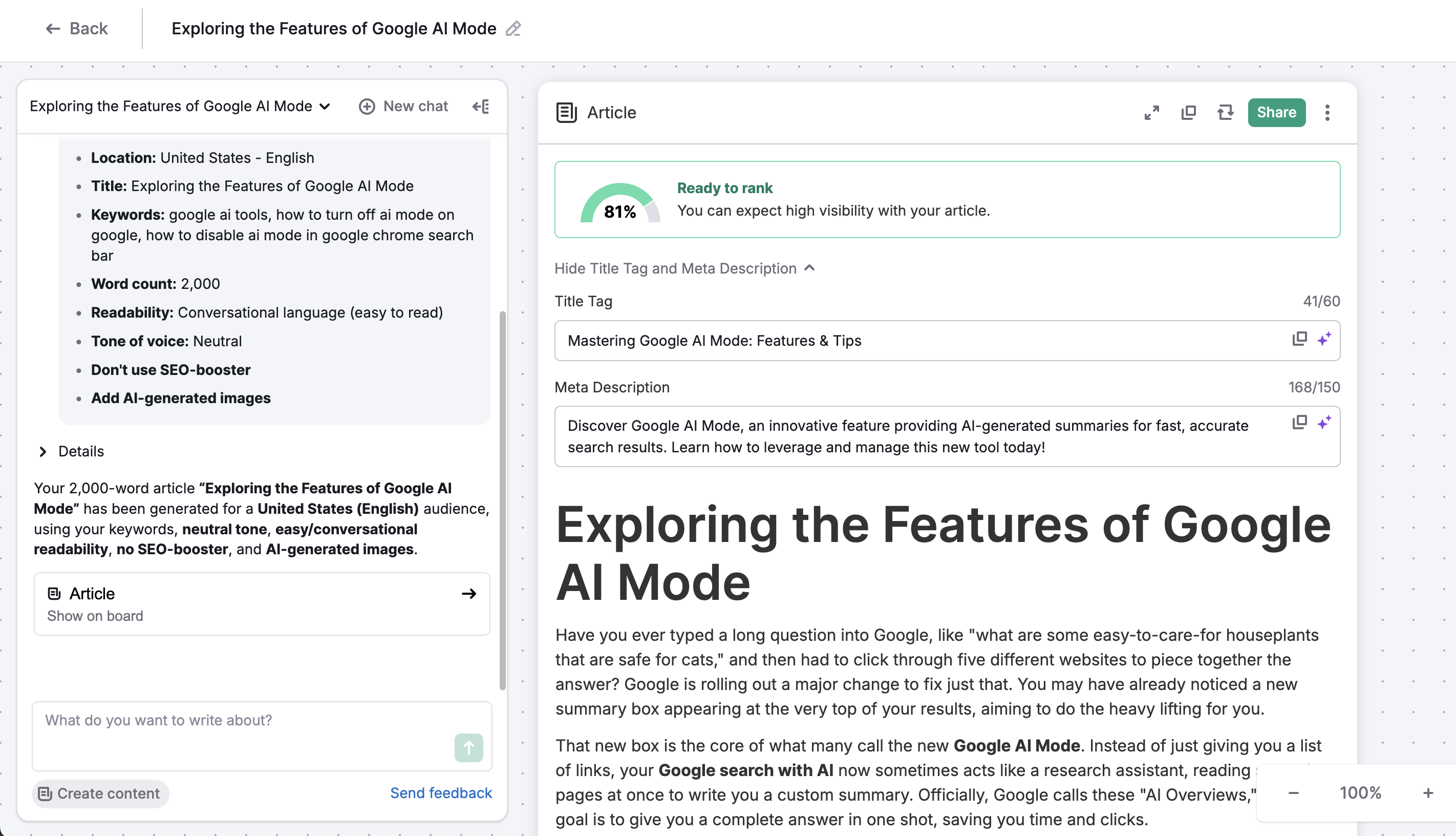
- Chat lets you create, edit, optimize, and repurpose content using simple prompts.
- Board shows your drafts, ideas, and SEO briefs as movable cards you can rearrange or expand into full projects.
Chat and Board simplify how marketers and small business owners manage content creation at scale. You can:
- Generate SEO- and LLM-optimized blog posts directly from prompts
- Turn existing articles into short-form pieces for social media or email
- Change text in emails, posts, and articles directly via chat prompts
- View and manage multiple content items side-by-side
- Collaborate with teammates on one visual board
Together, Chat and Board make the content workflow more intuitive, flexible, and efficient — no switching between tools required!
How to Use Chat and Board
The following steps show how to start and use Chat and Board in the Content Toolkit.
Step 1. Launch the Content Toolkit Dashboard
Go to the Content Toolkit from your Semrush dashboard.
Step 2. Choose Your Workflow
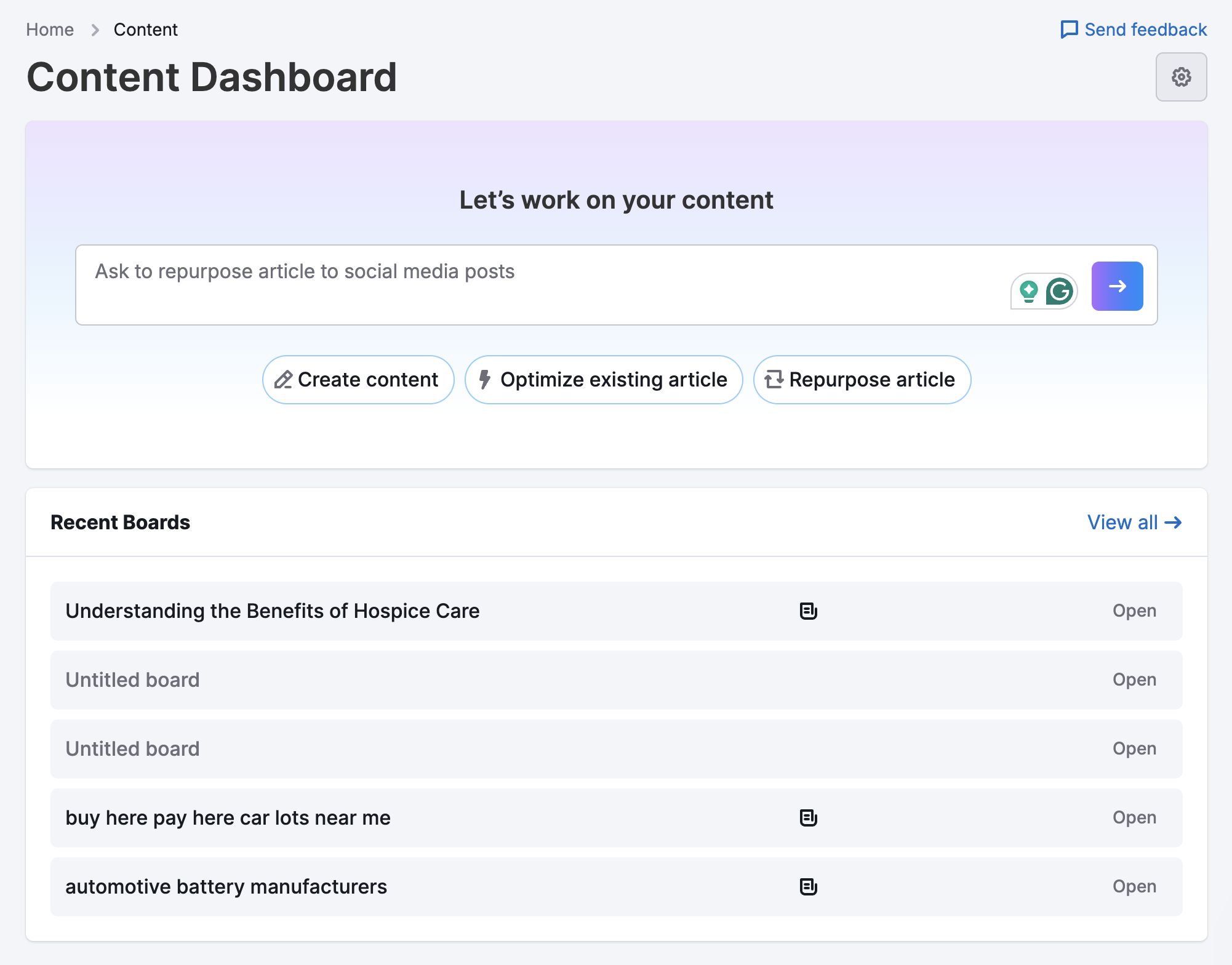
You’ll see three content creation options:
- Create content: Begin a new article or SEO brief.
- Optimize existing article: Improve existing content for SEO and LLM visibility.
- Repurpose article: Transform one piece into formats for other channels.
You can also start typing any idea, question, or prompt into the search bar.
Step 3. Start Interacting in Chat
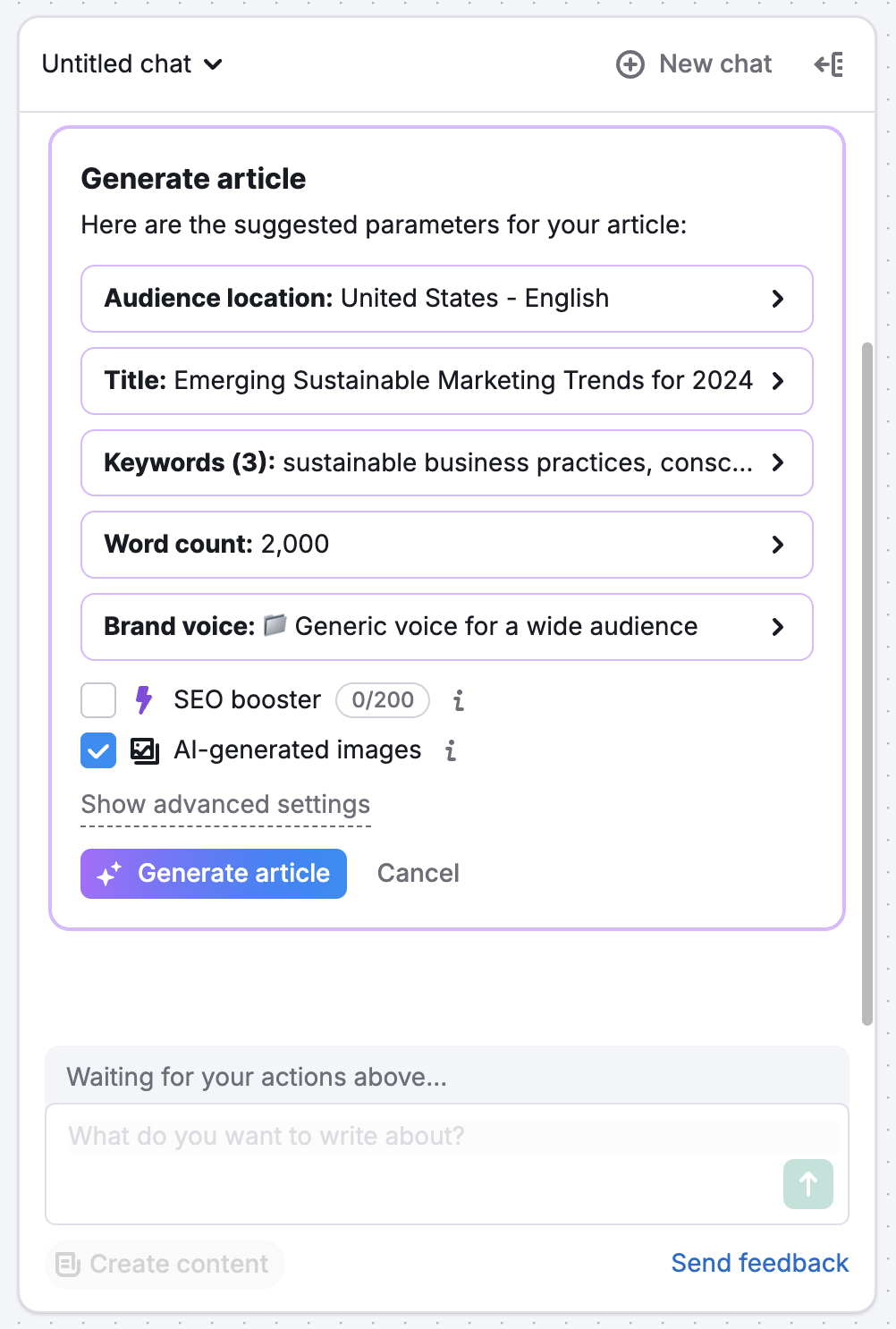
Enter your prompt in Chat to begin. The assistant will ask follow-up questions and suggest next steps based on your goal.
Example: You type: “Create an article about sustainable marketing trends.”
Chat replies with structure ideas, tone suggestions, and optimization prompts.
Pro tip: Short, direct prompts produce clearer results. Try “repurpose my blog for social media posts” instead of long instructions.
Step 4. View and Edit on Board
When Chat generates content, a new card appears on the Board. Each card includes a title, content preview, and quick-access options to open or edit. You can move cards around, group them by stage, or double-click to view the full text.

Additionally, you can use Chat to dynamically edit existing cards:
- Select the card: Click on the specific card on your Board that you want to edit. You must select the card first before typing your request so the chat knows which content piece to modify.
- Prompt an edit: Enter a command into the chat specifying what you want to change (e.g., "Make the tone of this email more urgent" or "Shorten the second paragraph of this post").
- Review versions: Chat will process your request and display a modal with the new content version. Click the Review versions button to open a full-screen, side-by-side comparison window.
- Apply or reject: If you are happy with the updates, click to accept and apply the new version, or reject the changes to keep your original draft.
Step 5. Review and Share Your Results
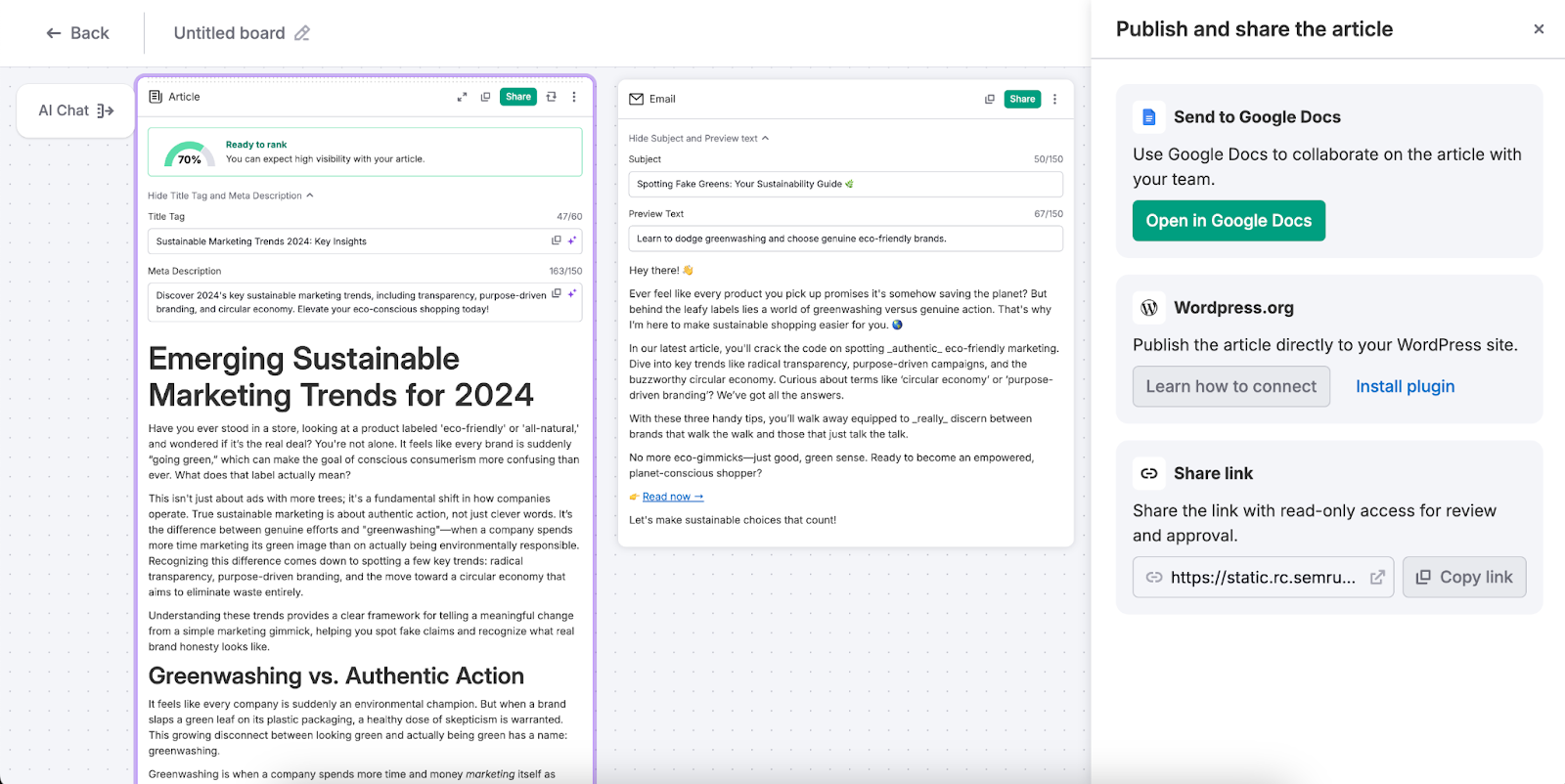
After refining your content, you can:
- Export drafts for publication or client review.
- Share your board with teammates for collaboration.
- Continue improving pieces by re-engaging Chat directly from each card.
Every action is saved automatically, so you can pick up where you left off anytime.
Using Chat and Board for Different Workflows
Each workflow in the Content Toolkit uses Chat and Board in slightly different ways.
Here’s how to make the most of each one.
Typing Your Own Prompt
If you’re not sure which option fits your goal, just start typing your request in the search bar. Chat interprets your prompt and automatically guides you to the right flow.
For example, if you write “Improve my About page,” Chat recognizes it as an optimization request. If you write “Turn this article into social posts,” the repurposing workflow launches.

If your request isn’t supported yet, Chat offers alternative suggestions.
Once your request is accepted, the generated output appears as a new card on the Board.
Create Content
This workflow uses Chat to generate articles, briefs, or outlines from scratch.
- Click “Create content.”
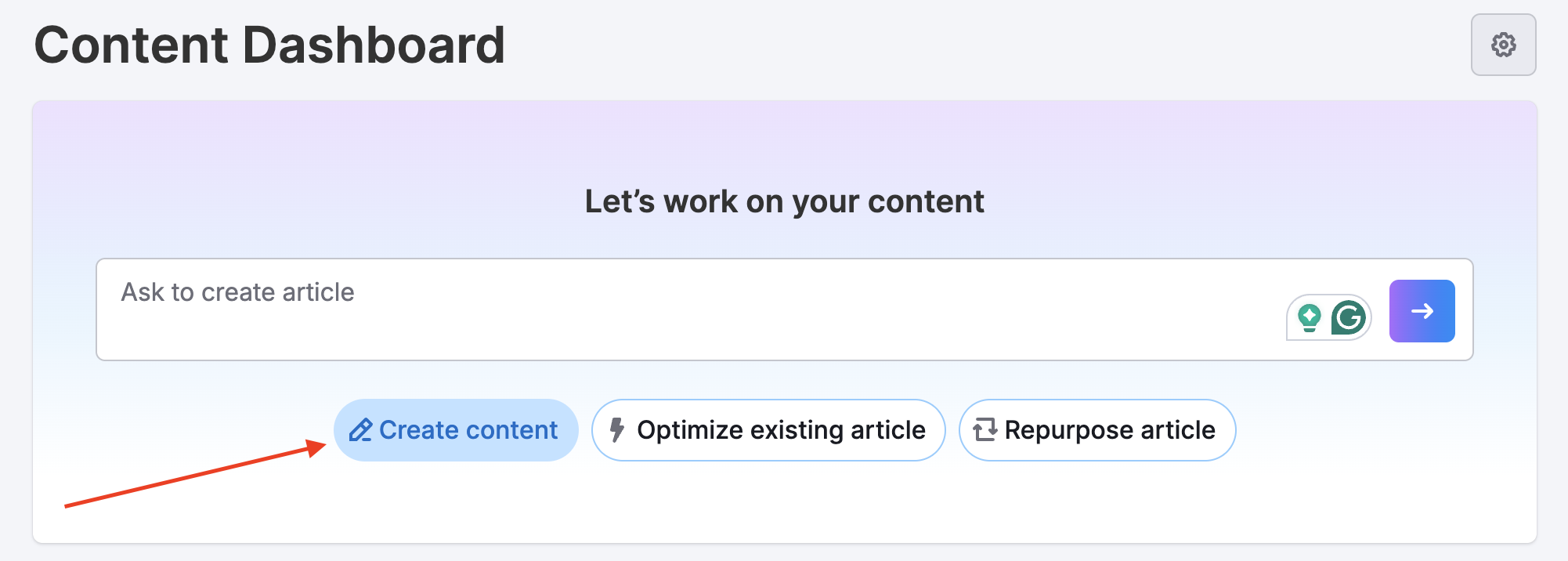
- Choose a content type: article, SEO brief, social post, or email.

- Enter a topic or keyword (for example, “Create an article about remote work productivity.”)
- Chat asks clarifying questions about tone, length, and audience.

- Approve suggestions and watch the new article card appear on the Board.
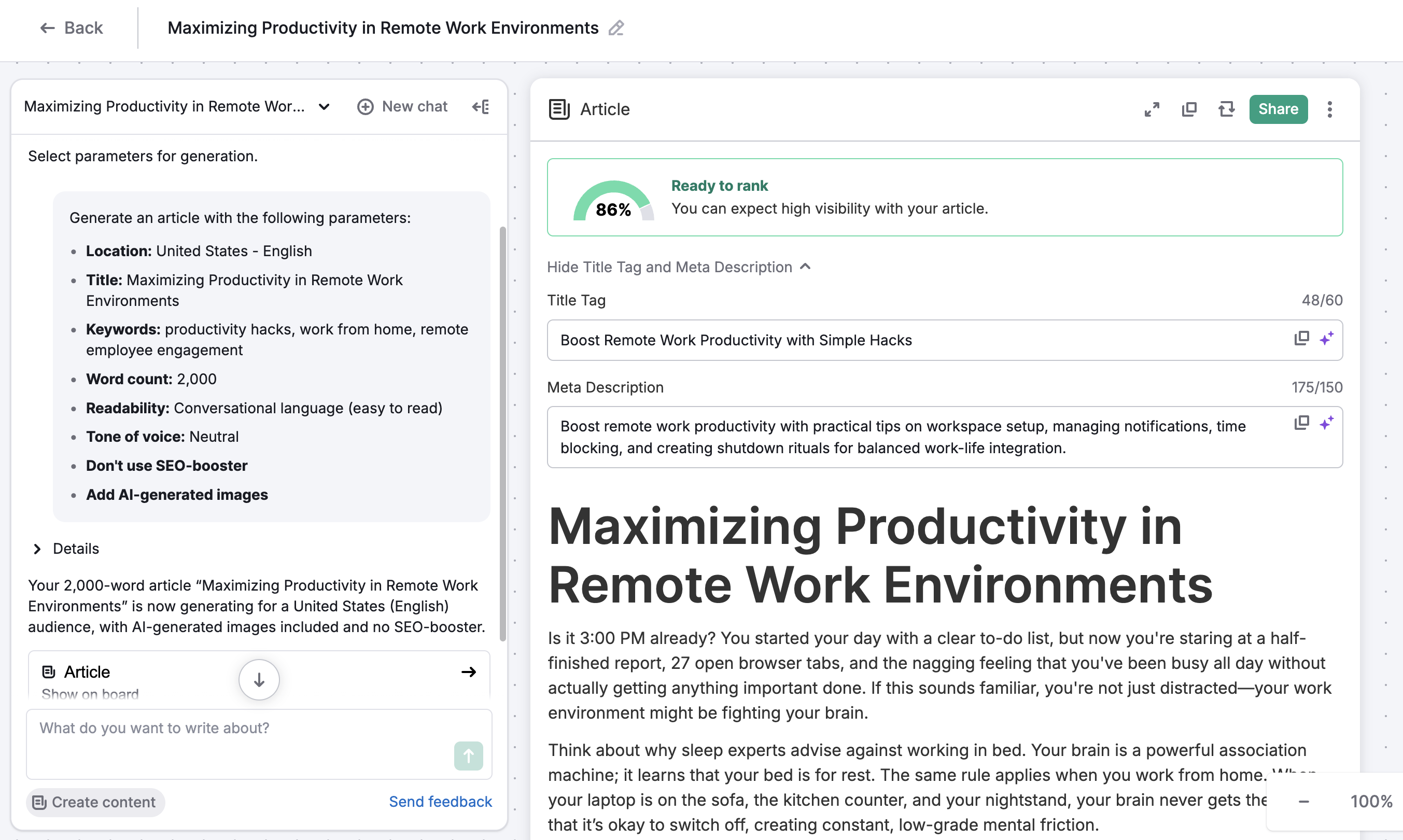
You can also create new content directly in the chat by clicking Create content in the bottom-left corner.
Pro tip: Ask Chat to “Generate an SEO brief first” to receive keyword clusters before you begin writing.
Optimize an Existing Article
Use this workflow to improve your article’s SEO and visibility across AI-powered platforms like ChatGPT or Perplexity.
- From the dashboard, select “Optimize existing article.”

- Enter an article URL or paste the text.

- Chat analyzes the article and lists improvements sorted by importance.

- Each improvement becomes a card on the Board for easy tracking.
Repurpose Existing Content
Turn one successful article into several new formats.
- Select “Repurpose article.”
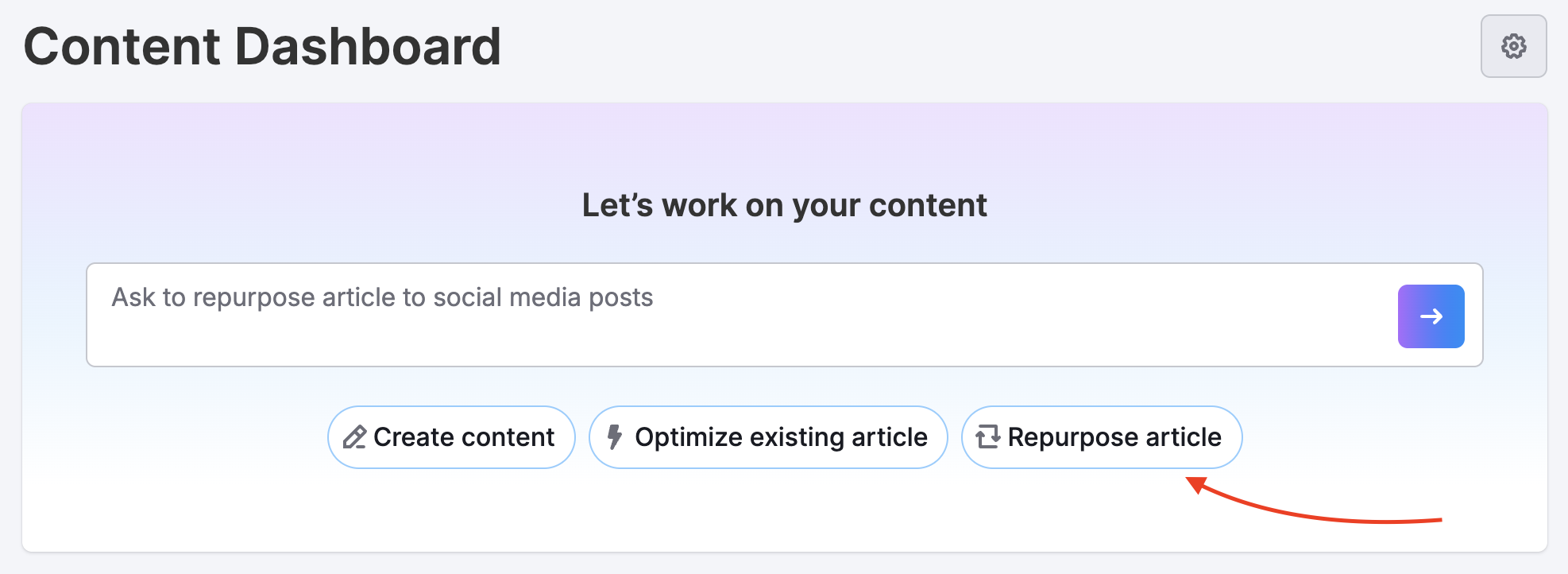
- Choose your source content: import, URL, Board, clipboard, suggestions…
- Select target platforms: social, newsletter, blog…
- Chat generates platform-ready versions and adds them as cards.
- Review and edit each version directly on the Board.

Pro tip: Start with your top-performing posts to maximize reach across multiple channels.
Frequently Asked Questions
Is Chat and Board included in all Content Toolkit plans?
Yes. Chat and Board are available to all users with access to Semrush’s Content Toolkit.
Does Chat and Board connect with other Semrush tools?
No, the Chat and Board feature doesn't connect with other Semrush tools. It functions as a standalone feature within the Content Toolkit ecosystem.
Will Chat and Board automatically save my work?
Yes. All changes made in Chat and Board are saved in real time as you create, edit, or move cards.
Can multiple users work on one Board?
Yes. Boards can be shared with teammates, allowing real-time collaboration and commenting.
Can I optimize existing articles for SEO and AI Visibility?
Yes. Choose Optimize existing article from the Content dashboard to receive personalized recommendations for AI and traditional search engines.
How is Chat and Board any different from ChatGPT?
While both use conversational AI, Chat and Board are built for content marketing. You can generate, optimize, and organize all your content within the Semrush ecosystem, connected to the platform’s valuable SEO data, keyword insights, and publishing workflows. In ChatGPT, you can write content, but you can’t visually manage or optimize it using real performance data.